A plugin update broke my site. Here is how to get it back.
The site worked yesterday. Then a plugin, a theme or the PHP version changed overnight, and now you have a critical error, a blank page or a checkout that will not finish. This is the order I work in when that call comes in.
Or call or text (502) 387-1142
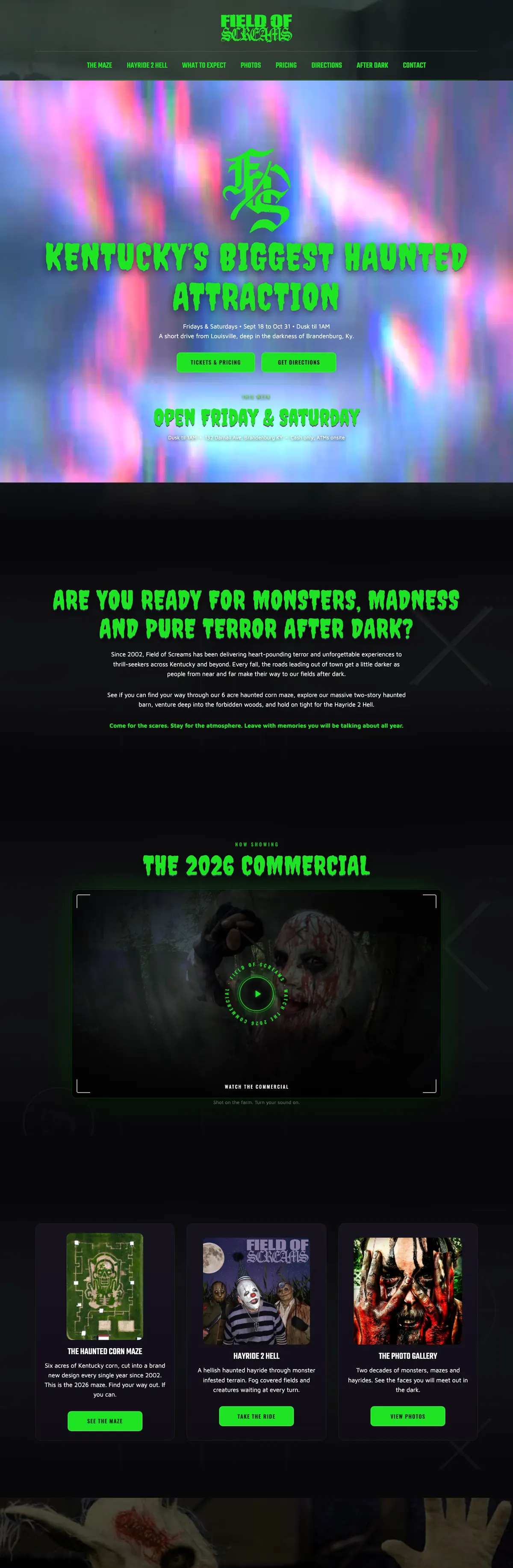

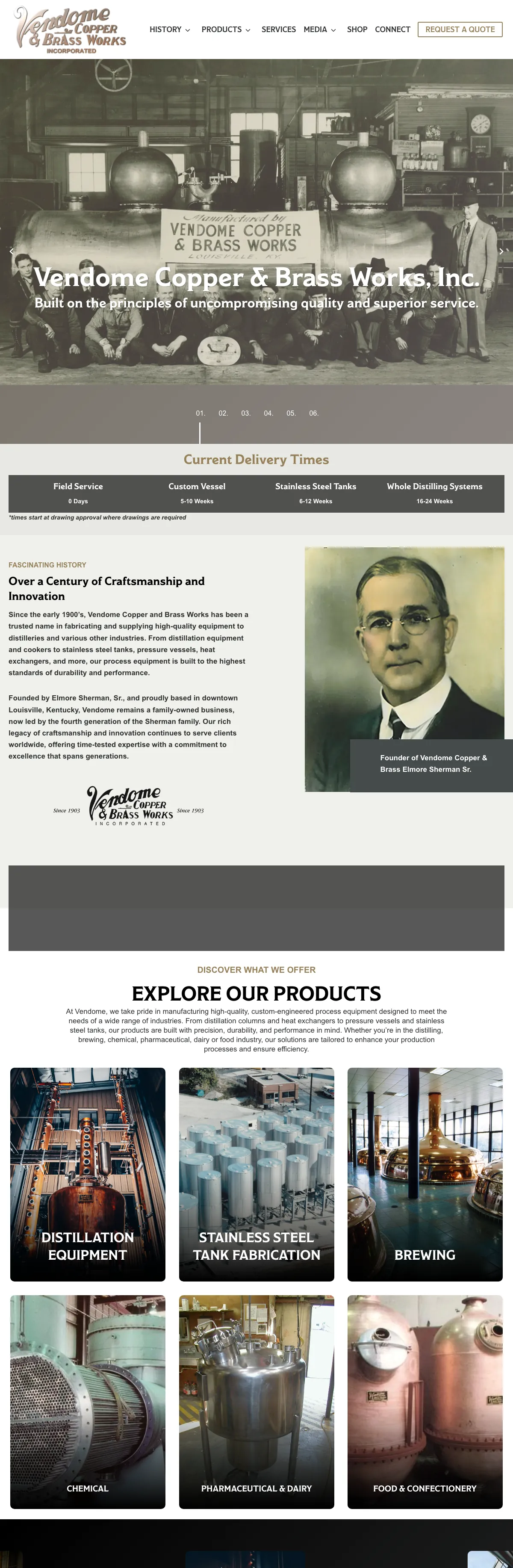

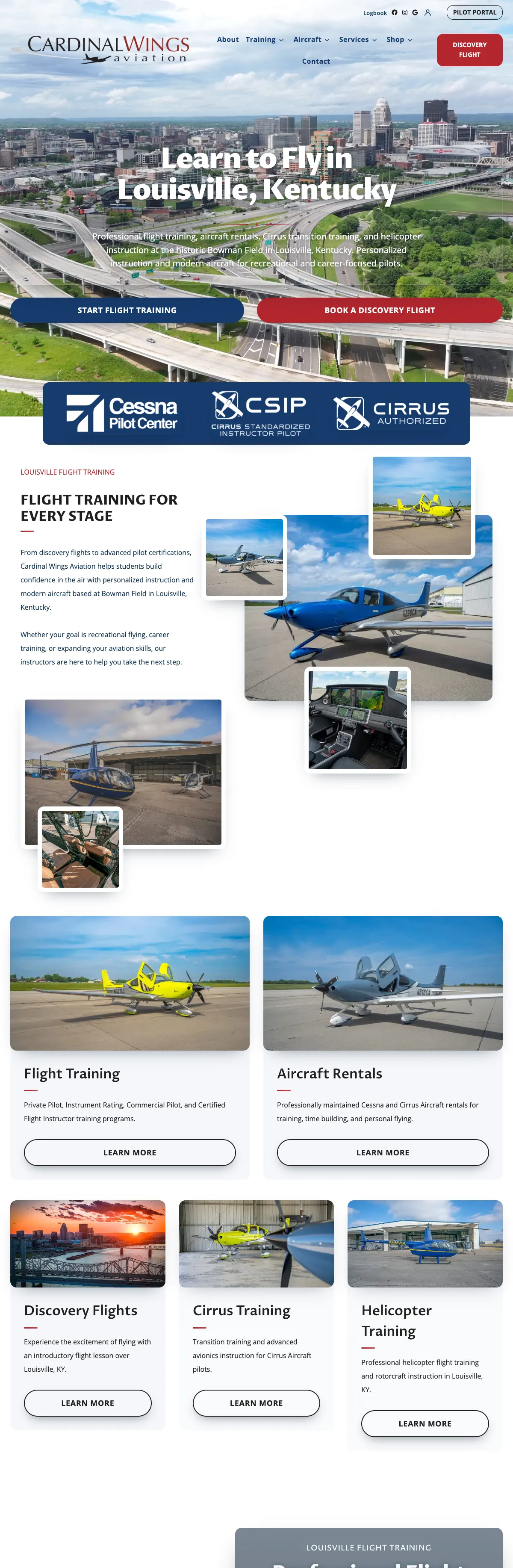
Websites I have built for Kentucky businesses



















The short answer
Stop updating anything else. Switch off the plugin that just changed, by recovery mode or by renaming its folder, and check that the site comes back. Then put the previous version of that plugin back, test the pages that make you money, and only then work out why the new version failed. Rolling back the plugin’s files does not undo any database changes the new version made, so check orders, forms and settings before you call it fixed.
If your host changed the PHP version instead, switch PHP back in the hosting control panel for now and fix the plugin that cannot handle the newer version. Do not restore an old full backup over a store in a panic, because it can erase the orders placed since that backup.
A plugin update broke my site: what actually broke?
Update problems show up in a few recognizable ways, and each one points somewhere different.
- “There has been a critical error on this website.” A PHP fatal error. Something in a plugin, theme or WordPress itself stopped the page from building.
- A completely blank white page. Usually the same fatal error with error display switched off.
- The site loads but looks wrong. Missing styles, a broken menu, a layout that collapsed. Often a theme, a page builder or a caching plugin.
- One feature fails. The checkout spins, the contact form will not send, the booking calendar is empty. The rest of the site looks fine, which is why these go unnoticed longest.
- You cannot log in. A security or login plugin changed, or the fatal error also hits the admin.
Next, find out what changed. WordPress emails the site’s admin address after automatic plugin and theme updates, so check that inbox first. The Updates screen and the Plugins screen show versions, and your host’s control panel may log a PHP version change. Whatever changed last is your first suspect.
If you also see pages you never wrote, strange redirects or admin users you did not create, this may be a hack rather than an update. Start with what to do in the first hour after a hack instead.
Get the site back in the next ten minutes
Right now the goal is a working site. The diagnosis can wait.
- Check the admin inbox for a recovery email. Since WordPress 5.2, a fatal error triggers an email to the admin address with a private link to recovery mode. Recovery mode pauses the failing plugin for you only, so you can log in and deactivate it properly. Visitors still see the error until you do.
- No email, or no admin access? Rename the plugin’s folder. Open your host’s file manager or connect by SFTP, go to wp-content/plugins and rename the folder of the plugin that just updated, for example by adding -off to the end. WordPress cannot find it, so it deactivates it.
- Clear every cache. A page cache or Cloudflare can keep serving the broken page after the fix. Purge both.
- Test like a customer. Log out, open a private window and load the home page, the contact form, and on a store the cart and checkout.
If renaming one folder does not help, the culprit may be the theme or a different plugin that depends on the one that updated. Rename one at a time and test after each, so you know which change brought the site back. If you would rather not touch the files at all, this is exactly the kind of WordPress repair I do.
Roll the plugin back to the version that worked
A deactivated plugin is a temporary fix. Most plugins are there because the site needs them, so the next job is to restore the last version that worked.
- From a backup or snapshot. If your backup keeps plugin files, restore only that plugin’s folder. Leave the database alone for now (more on that below).
- With WP-CLI. If you or your developer have command-line access, WP-CLI’s plugin install command, given the plugin’s slug, the version number and its force option, replaces the installed copy with exactly that version from WordPress.org.
- From the vendor. Premium plugins usually let you download earlier releases from your account on the vendor’s site.
Then turn off automatic updates for that one plugin. Since WordPress 5.5, the Plugins screen has an automatic update link for each plugin that switches it on or off. Leave it off until the plugin’s author ships a fix and you have tested it somewhere other than the live site.
To see the actual error, switch on logging rather than on-screen errors: set WP_DEBUG and WP_DEBUG_LOG to true and WP_DEBUG_DISPLAY to false in wp-config.php, and WordPress writes errors to wp-content/debug.log. WordPress’s own debugging documentation advises against leaving debugging on for a live site, so turn it off once you have the error.
When the PHP update is the real cause
Sometimes no plugin changed at all. The host moved the server to a newer PHP version, and an older plugin or theme that worked fine on the old version now fails.
PHP versions have a fixed life. According to php.net’s supported versions page, PHP 8.2 receives security fixes only until December 31, 2026, PHP 8.3 until December 31, 2027 and PHP 8.4 until December 31, 2028. WordPress itself recommends PHP 8.3 or newer. Hosts move sites forward because running an unsupported version is a security risk. Switching PHP back only buys time. The real fix is the plugin or theme that cannot keep up.
The safe order:
- Switch the site back to the previous PHP version in your hosting panel to get it working today.
- Read the debug log to find which plugin or theme file fails.
- Update that plugin, replace it, or have its code fixed.
- Move PHP forward again on a staging copy first, test, then on the live site.
The last step matters. Staying on an old PHP version forever just moves the same failure to the day the host stops offering it.
Why WordPress’s own safety nets did not catch it
WordPress has added real protection over the years, and it is worth knowing exactly where it stops.
- Rollback of failed updates (WordPress 6.3). If the update process itself fails, for example a failed download or files that cannot be copied into place, WordPress restores the previous version. It does nothing when the update installs cleanly and then breaks the site.
- Rollback of automatic plugin updates (WordPress 6.6). After a plugin auto-updates, the rollback check requests the home page and looks for a PHP fatal error. If it finds one, it restores the previous version and emails the admin. It only checks the home page and only for fatal errors. A broken checkout, a form that stops sending, a layout that collapses or an error on any other page passes straight through.
- Recovery mode (WordPress 5.2). It lets you, the admin, work around a fatal error. It does not fix the site for visitors.
That gap is why stores and lead-generation sites need someone, or something, that tests the pages that earn money after every update.
Careful with the database
Many plugin updates change the database as well as the files. WooCommerce, form plugins and membership plugins often run a database update after the new version installs.
Rolling back the plugin files does not undo those database changes. Usually the older version copes, but not always. Restoring a full backup that includes the database undoes them, along with every order, form entry, booking and comment created since that backup was taken.
So on a store or a busy site:
- Roll back files first, and see if that is enough.
- If the database has to go back, export the orders and entries created since the backup before you restore.
- Know before the bad day whether your backups would restore at all. My guide to testing a backup restore takes an afternoon.
- If in doubt, get help before restoring anything. A broken checkout for an hour costs less than a week of lost orders.
How I keep updates from breaking the sites I look after
I run updates for client sites in Louisville and across Kentucky, and the method is built around the gaps above.
- A verified snapshot first. The database, plugins and themes are copied and checked before anything changes.
- One plugin at a time. After each one, an automatic check: the key pages load, no new fatal errors appear in the logs, and on stores a checkout test runs.
- Put back on the spot. A plugin that fails its check is restored from the snapshot before the next one starts.
- No blind database restores. On a store, the database is never rolled back automatically, because orders placed since the snapshot would be lost. That decision goes to a person.
- Stores updated by hand. On the online stores I run, WordPress’s own automatic plugin updates stay off, so every store update goes through the checked process.
- Watched from outside. Every site I host is loaded once a minute, and a real problem alerts my phone.
That routine is the core of my WordPress maintenance plans, and it runs on every site on my managed WordPress hosting. It cannot promise an update will never misbehave. It does mean the misbehaving update gets caught and put back before a customer finds it.
Frequently asked questions
Should I turn off automatic plugin updates?
On a simple brochure site, automatic updates usually do more good than harm, because security fixes arrive quickly. On a store or a site with complex forms, I prefer updates that run through a tested process, so a bad release is caught before customers see it. Either way, someone has to be checking the site afterward.
Will I lose my content if I roll back a plugin?
Rolling back the plugin’s files does not touch your pages, posts or orders. Restoring a full backup that includes the database does, which is why files go back first and the database only with care.
How do I find out which plugin caused it?
Check the admin inbox for update emails, then switch on the debug log. The fatal error in wp-content/debug.log names the file that failed, and the folder in that path names the plugin.
The update email says it was rolled back, but the site still looks wrong. Why?
WordPress’s automatic rollback only looks for PHP fatal errors on the home page. Layout problems, form failures and checkout errors are not checked, so test those pages yourself or have them tested after every update.
Can you fix a site somebody else built?
Yes. I find the change that broke it, put the site back, and tell you in plain English what happened.
A store where an update that breaks shipping is lost sales.
Heimerdinger Cutlery has sold knives in Louisville since the 1800s. Its WooCommerce store carries live UPS shipping rates on every order, so a plugin update that breaks the cart is not a cosmetic bug.
I host the store, and every plugin update is tested against the checkout before it goes live. When something does need fixing, the person who notices is the person who built it.

Site broken right now?
Tell me what changed and what you are seeing. I will get it back, tell you what broke, and set it up so the next update gets tested before your customers find it.