
Client help center: quick answers for your website
Short how-tos for the things clients ask me most: editing a page, adding a product, finding a form entry, getting back in when a password goes missing. If a step does not match your screen, text me a screenshot and I will walk you through it.
Or call or text (502) 387-1142
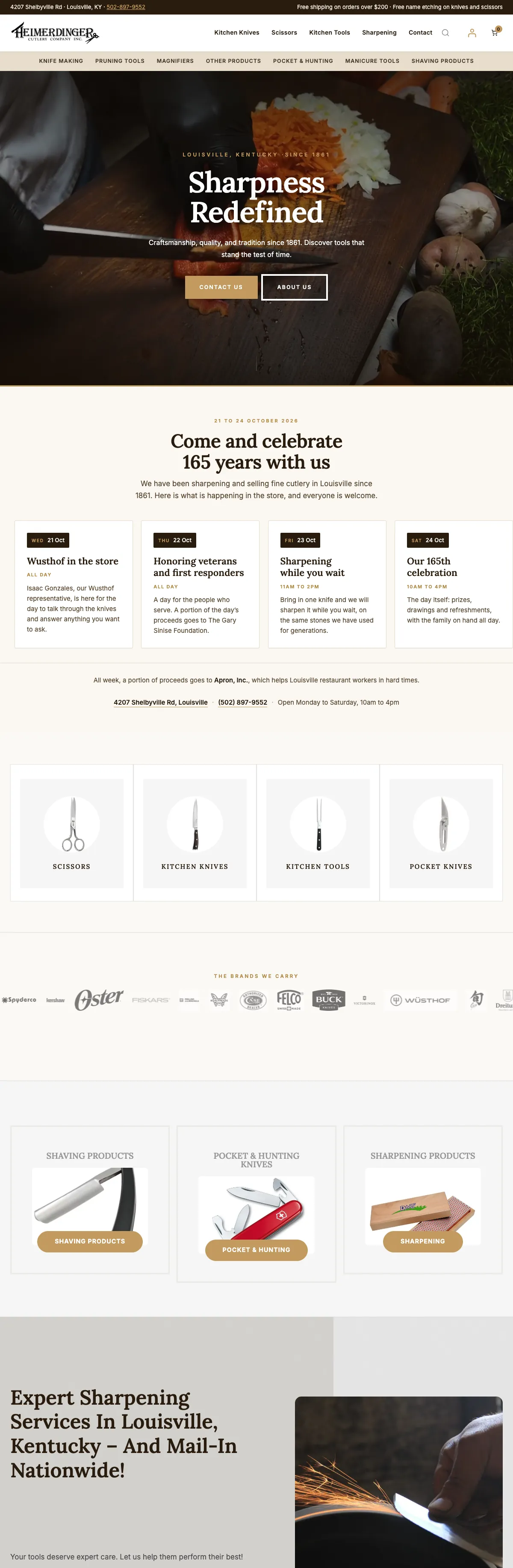


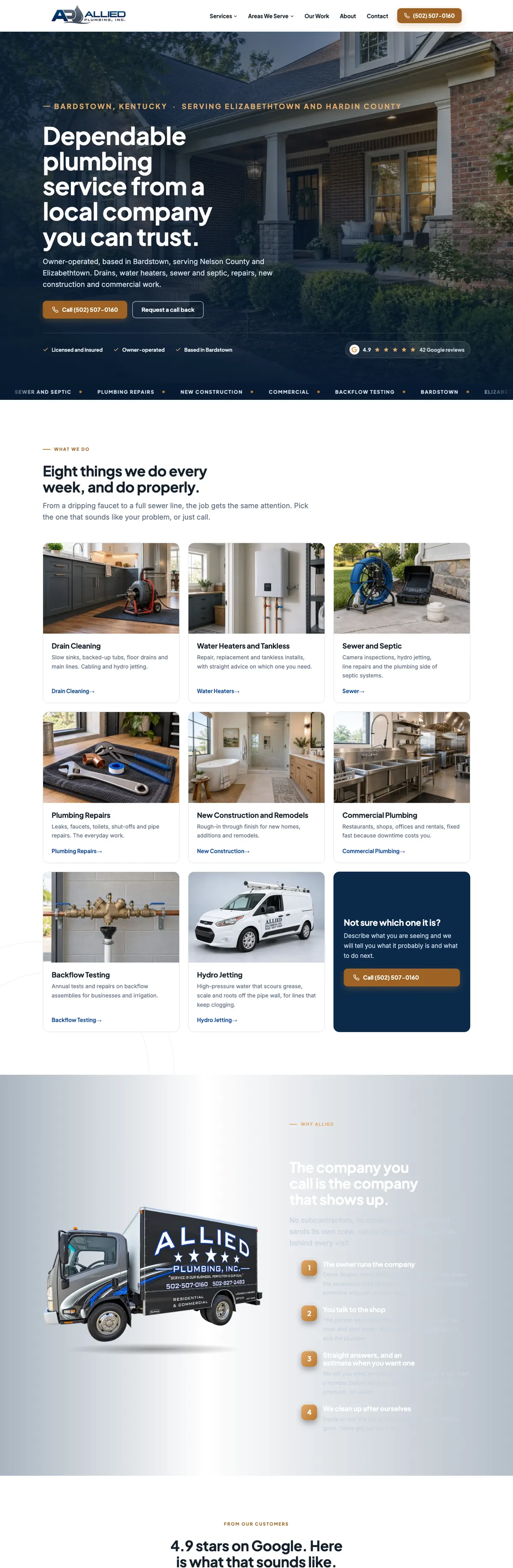
Websites I have built for Kentucky businesses


















Before you use this client help center
This client help center is written for WordPress sites built on the Kadence theme, with WooCommerce for stores and Gravity Forms for forms, which is how most of my clients’ sites are set up. Menu names shift a little between versions, and your site may have extra menus I added for your business, so treat the paths below as a guide.
Always log in with your own account, never a shared one. And if a screen asks you to update, delete or install something you were not expecting, stop and ask me first. A two-minute text saves a lot of repair work.
Logging in
Log in to your website
Go to the login address I gave you when the site launched. On many sites it is your domain followed by /wp-admin/, but some sites use a different login address for security, so check the details I sent you at launch. Sign in with your own username or email address and password, and enter the code from your authenticator app if your account uses two-factor sign-in.
Reset a lost password
On the login page, click Lost your password?, enter your username or email address, and follow the link in the email WordPress sends you. If the email does not arrive within a few minutes, check your spam folder, then text me. WordPress’s own password reset guide covers the other ways back in. To change a password you still know, go to Users, then Profile, set a new password in the account management section and click Update Profile.
Editing your pages
Edit a page
Go to Pages, then All Pages, hover over the page title and click Edit. Click into any text and type. Sections built with Kadence blocks can be nested several layers deep; open the Document Overview (the icon of stacked lines near the top left of the editor, also called List View) to see every block and click straight to the one you want. Use Preview to check your change, then click Save at the top right (some versions label it Update).
Made a mistake after saving? Open the page settings in the right-hand sidebar and use Revisions to compare and restore an earlier version.
Replace an image
Click the image in the editor, then choose Replace in the toolbar that appears above it. Pick a photo from the Media Library or upload a new one. Before you save, add a short description of what is in the photo in the Alternative text box in the sidebar. It helps visitors who use screen readers, and it helps search engines.
Write and publish a blog post
Go to Posts, then Add New Post (older versions say Add New). Add a title and your text, choose a category and a featured image in the sidebar, then click Publish. To publish later, change the publish date in the sidebar before you click Schedule.
Update the menu
Go to Appearance, then Menus. Tick the pages you want in the Pages box on the left and click Add to Menu. Drag items up or down to reorder them, or slightly to the right to tuck one under another as a dropdown. Click Save Menu when you are done. The header layout itself lives in the Kadence settings, so text me before moving things around up there.
Your online store
Add a WooCommerce product
Go to Products, then Add New. Then:
- Type the product name and the full description.
- In the Product data box, check the type is Simple product, then enter the Regular price and, if it is on sale, the Sale price.
- Open the Inventory tab to add a SKU and either track a stock quantity or set the stock status.
- If your shipping is calculated by weight or size, fill in the Shipping tab.
- Write the short description that appears beside the photos.
- In the right-hand column, tick the product’s categories, then use Set product image for the main photo and Add product gallery images for the rest.
- Click Publish, then View product to check it.
WooCommerce’s add a product guide explains the other product types, such as variable products that come in several options.
Change a price, run a sale or mark something sold out
Open the product from Products, then All Products. Change the Regular price, or add a Sale price and click Schedule beside it to set start and end dates. To mark it sold out, open the Inventory tab and set the stock to zero or the status to Out of stock. Click Update or Save to finish.
Forms and leads
Find a form entry in Gravity Forms
Go to Forms, then Entries. If you have more than one form, click the arrow beside the form name at the top to switch forms. Click any entry to read it in full. The filters along the top show All, Unread, Starred, Spam and Trash, as the Gravity Forms entry list guide shows.
If a lead seems to be missing, check Spam first. To download entries as a spreadsheet, go to Forms, then Import/Export, choose the form on the Export Entries tab, tick the fields you want and click Download Export File. The Gravity Forms export guide covers date ranges and the other options.
Entries are saved on the site even when a notification email fails to arrive. If entries are there but the emails are not reaching you, text me; the usual causes are covered in fix website form emails. Getting a flood of junk instead? See how to stop contact form spam.
People and access
Add a user
Go to Users, then Add New User. Enter a username and the person’s own email address, choose a role, leave the box ticked to send them an email about their account, and click Add New User. Pick the smallest role that does the job:
- Administrator: full control of everything, including users and plugins. Give it sparingly.
- Editor: can edit all pages and posts, but not settings or plugins.
- Author: can write and publish their own posts.
- Shop manager: on stores, can manage products, orders and store settings and edit content, without access to plugins or themes.
When someone leaves, go to Users, then All Users, and delete their account. WordPress will ask who should own their content; choose yourself.
When something looks wrong
Clear the cache
If you saved a change and cannot see it, the page is probably being served from a saved copy. First open the page in a private or incognito window, which skips your own browser’s copy. If it is still old, look for a cache option in the admin bar across the top of the site, such as Delete Cache or Purge, depending on the cache plugin your site uses. Some sites also have a cache in front of them at Cloudflare. If nothing changes after a few minutes, text me and I will clear it.
If your site looks down
Open it on your phone with Wi-Fi turned off. If it loads there, the problem is probably your office network. If it does not, try a second page and the login page, and note the exact message you see. Check that a domain renewal notice has not been missed. Then call or text me at (502) 387-1142 with a screenshot. If I host your site, an outside monitor checks it every 60 seconds and alerts my phone, so I may already be on it, but tell me anyway. For sites anywhere, the website down checklist walks through the same steps in more detail.
Send me a screenshot
A screenshot of the problem, plus the page address and what you clicked, saves a lot of back and forth.
- Mac: press Shift, Command and 4 together, then drag across the area. The image lands on your desktop.
- Windows: press the Windows logo key, Shift and S together, then drag across the area. The image is copied, ready to paste into an email.
- iPhone: press the side button and volume up together, or the side button and the Home button on older models.
- Android: press the power and volume down buttons together on most phones.
Text it to (502) 387-1142 or attach it to an email to shaun@shaunwilsondesigns.com.
Billing
Pay an invoice
Invoices are paid through the link in your invoice email. If you cannot find the email, or something on the invoice does not look right, text or call me before paying and I will sort it out.
Frequently asked questions
Can I break my site by editing a page?
Editing text and images on a page is safe, and every save keeps a revision you can restore. The risky screens are plugins, themes and settings, so leave those to me unless you and I have talked it through.
Should I update plugins myself?
If I maintain your site, no. Updates run with a snapshot first and checks afterward, so a bad update can be rolled back. Updating on top of that can undo the safety net.
What if the steps here do not match my screen?
Your site may be on a different version or have menus I set up specifically for your business. Send me a screenshot and I will tell you where to click.
Who do I contact when something is wrong?
Me. Call or text (502) 387-1142, or email shaun@shaunwilsondesigns.com. You get the person who built or looks after your site, not a ticket queue.
Stuck on something not listed here?
Text or call me at (502) 387-1142 with a screenshot and the page address. You will be talking to the person who built or looks after your site.